Docking
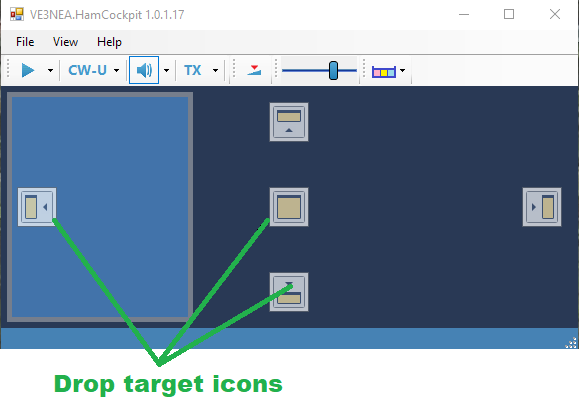
Visual plugins installed in Ham Cockpit may be opened and closed using the View menu and arranged in the desired layout using drag-and-drop. The visual panels may be docked inside the docking area of the main program. To dock a panel, drag it to the main window with a mouse and drop it on one of the drop target icons that appear when the panel is over the docking area:
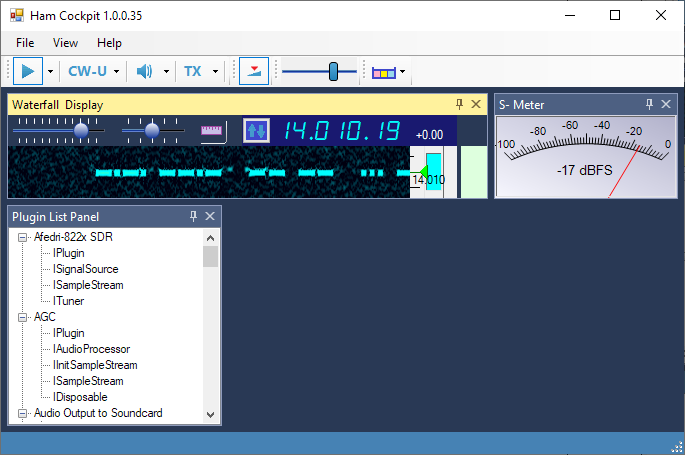
The panels may be arranged in many different ways, play with the docking system to see what is possible:
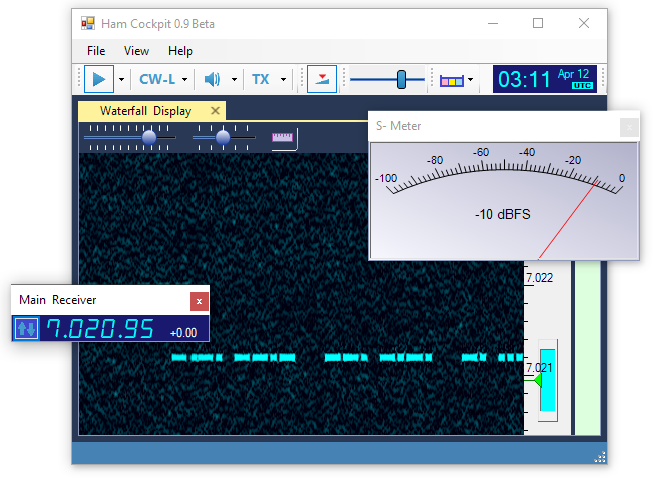
The plugin panels may be left floating if desired:
The program saves the panel layout on exit and restores it on the next start.